Using VSCode with Godot: Pros, Cons and Tips
🔷 I share my experience using both Godot's built-in editor and VSCode. I cover pros, cons, tips, and pitfalls.
Information currently only applies if you use GDScript for your projects.
Post will be updated based on feedback and new tools that I try.
Short overview
Some info can be applied to any IDE, but I focus on VSCode. I haven’t tried Rider yet.
Pros for Godot Script Editor
Working inside Godot keeps everything in one place:
- Code is not separated from essential windows like Inspector or Scene.
- Built-in UI integration like signal connection or autocompletion icons hints. See details.
- Ability to make changes to project filesystem using FileSystem window. See details.
Other notes:
- Direct access to addons from the asset library. See details
- You don’t need to manage other technologies. VSCode not only means a new app, but also an additional layer (godot-tools) between your code and engine which naturally comes with additional complexity. See details.
Pros for VSCode
Godot is a game engine and not an IDE, so it naturally lacks features:
- Tab management like split view or tab pins.
- Ability to work with textual representation of essential Godot files like
.tscnor.tres - Ability to work with files which Godot does not support (e.g. blender
.pyscripts). See details. - Deep integration with version control system. See details.
VSCode (via godot-tools extension) also provides:
VSCode also has a huge extensions ecosystem. See details and recommended list for VSCode.
Details
🌉 Pros and Cons of Godot-Tools
Godot-tools is a necessary extension which makes VSCode interact with Godot Engine via LSP connection. When I mention VSCode, I am referring to VSCode/godot-tool pair.
The connection and running/debugging features are very robust, but it still adds a layer between you and the engine, which comes with bugs, possible sync issues and additional latency.
Also godot-tools lags behind engine releases. This is noticeable when new GDScript syntax features are introduced (while it does not happen often).
At the same time, it provides additional important features, see below.
🔠 Code formatting
UPD: New semi-official formatter has been developed. I haven’t tried it yet.
I haven’t found a way to do that inside Godot (without addons), so this is a big advantage for VSCode/Godot-tool pair.
But note, that godot-tools supports only the subset of the official style guide. Examples:
- Does not enforce 2 empty lines padding between functions (uses 1 line)
- Ignores indentations like this (leaves “bad” indentations unchanged).
Also it might add additional bugs. Examples:
- Recently started to add a redundant space after
self:call_func(self ) - Struggles with
@abstractkeyword (link, link).
It happened only once for me, but formatting actually may break the code:
1
2
3
4
5
6
@abstract class _Base:
	@abstract func hey()

class Derived	extends _Base:
	func hey():
		pass
Is formatted as:
1
2
3
class Derivedextends_Base: # <- problem
	func hey():
		pass
Fix:
1
2
3
4
class Derived \
	extends _Base:
	func hey():
		pass
↔️ Project-Wide Renaming
I haven’t found an equivalent for this feature in the built-in Godot editor, and I don’t know how godot-tools performs it technically. I describe the basic usage and some empirical tests.
Godot-tools supports project wide renaming of entity names (like variables, classes and functions). This can be done via F2 key or Rename Symbol context option.
Scope is generally respected: renaming function parameter from a to b does not mean that all a will be renamed across the whole project.
But mistakes are also common. Notable example is that when you rename a function, all mentions of this name inside string values and comments will be renamed. This can be both handy and catastrophic:
1
2
3
4
5
6
7
8
9
# TestClass.waiting() helps you to wait
# "waiting for godot" is a tragicomedy play first published in 1952

const default_state = "waiting"
const second_state = "waiting for godot"
const third_state = "awaiting"

func waiting():
	pass
Let’s rename func waiting() to async_waiting using F2.
✔️ - expected change. ❌ - false positive.
1
2
3
4
5
6
7
8
9
# TestClass.async_waiting() helps you to wait ✔️
# "async_waiting for godot" is a tragicomedy play first published in 1952 ❌

const default_state = "async_waiting" # ❌ (probably)
const second_state = "async_waiting for godot" # ❌
const third_state = "awaiting" # ✔️ (only this line hasn't changed)

func async_waiting(): # ✔️
	pass
It makes me think that it depends on pattern matching besides the language semantics.
To conclude:
- Very useful for things like renaming base classes
- Pretty good for narrow scopes (local variable) and for big and unambiguous names (
awake_knight_artorias). - Renaming generic and short names may cause dozens of unrelated false positives across the project.
- False negatives also occur.
The best tip is to always verify the diff changes before committing.
🎨 IDE Extensions and Godot Addons
Honorable mention: a Godot addon which makes built-in editor closer to IDE. I haven’t tried it.
The IDE has a big library of actively maintained extensions or plugins. For example:
- You write project docs and want to add a markdown linter or spell checker
- You work in a team and want additional VCS features like git blame or git graph
- You want using some additional tech stack like Docker containers
Sometimes you can find alternatives in Godot asset library, but there are usually niche and could be abandoned. link link link
On the other hand, it provides popular GDScript specific tools, that external IDE would not have. link link
Main takeaway is that using IDE adds a lot of possibilities, while all native addons can still be used.
🌿 Version control
I would recommend using external IDE for big projects.
Godot has an official plugin, but it’s not actively maintained.
🖥️ Godot built-in UI features that VSCode lacks
Godot UI allows you to drag-and-drop a node to your code script as an @onready variable. Same trick can be done with files and probably some other UI windows.
Besides that, built-in editor shows many useful UI hints.
- Icons for different types, while performing completion
- If method is overridden for both built-in and custom methods
- If function is connected to signal in UI. This one is important: callbacks that were connected using UI look like dead code in external IDE.
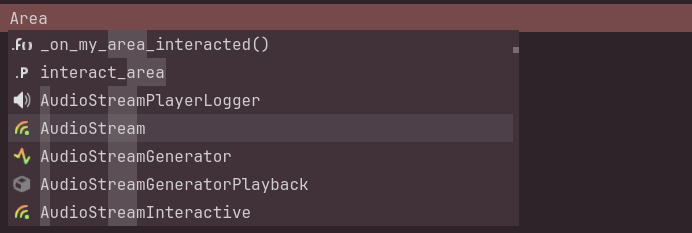 type icons
 overridden built-in function
 overridden custom function
 signal is connected
This is not an exhaustive list, and with each new engine release new possibilities appear: link huge-link
Using VSCode will cut you off from all these conveniences.
📂 Working with file system
Any changes to the file system should be done only via Godot UI FileSystem view.
Never move assets from outside Godot, or dependencies will have to be fixed manually
Changing file structure via IDE would lead to broken dependencies, scripts being unattached from nodes, incorrect UIDs and sometimes even a file duplication.
This could make VSCode usage cumbersome and potentially dangerous (accidentally moving a file).
VSCode extensions for working with Godot
🦾 - recommended; ✍️ - QoL
Godot extensions:
- 🦾 godot-tools.
- This one is necessary. Integration with Godot Engine via LSP, debugger, formatter
- 🦾 godot-files
- ✍️ godot-tab-formatter
- ✍️ godot theme
Other:
- 🦾 vscode-highlight
- helps to quickly extend godot-tools code highlighting abilities or solve some quirks (like with
@abstractkeyword)
- helps to quickly extend godot-tools code highlighting abilities or solve some quirks (like with
- 🦾 error lens
- displays inline errors and warnings directly in the code
- ✍️ Colorful folders
- if you want to synchronize your fancy colorful folders between Godot and VSCode
- ✍️ Copy Path (Unix Style)
- recommended for Windows for matching Godot’s forward-slash path format
VSCode troubleshooting
When updating or moving godot.exe don’t forget to change godotTools.editorPath.godot4 in VSCode settings.